
Help Center Account & settings
Reset a forgotten password
Get a reset link by email and choose a new password, without signing in.
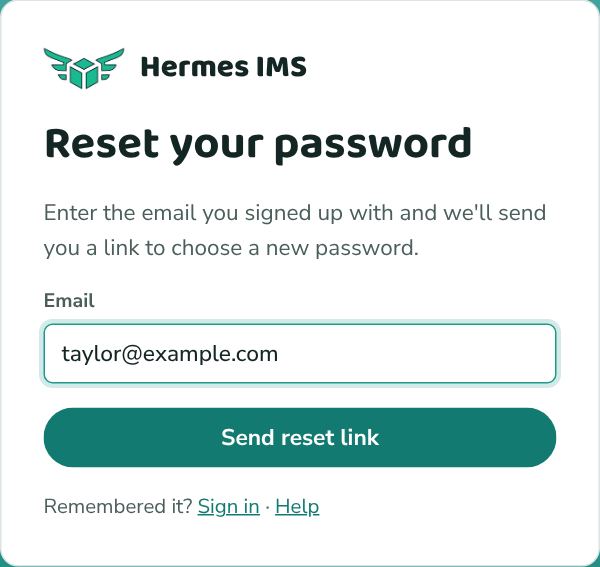
Get a reset link
- Go to the sign-in page and click Forgot password? (next to the Password label). Or go straight to /forgot-password.
- Enter the email you signed up with and click Send reset link.
- Open the email from Hermes IMS and click the link in it. The link works for 15 minutes, and only once.
Choose a new password
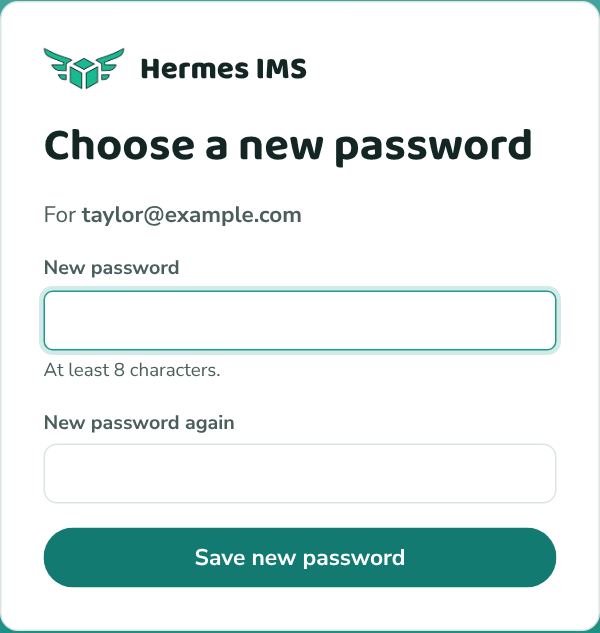
- The link opens Choose a new password. Type your new password (at least 8 characters) twice.
- Click Save new password. You're signed in, and Settings → Account confirms the change.
If it doesn't work
- No email after a few minutes? Check spam and promotions, and make sure you typed the address you signed up with. For your security, Hermes says the same thing whether or not an account exists, so a typo won't show an error.
- "Wait a minute"? Reset emails can only be sent about once a minute. Wait, then try again.
- "This link has expired"? Links work for 15 minutes after they're sent, and only once. Ask for a new one.
- Opened the link in a different browser or on another device? It should still work. If it doesn't, ask for a new link and open it on the device you asked from.
- Still stuck? Email zach@ztech-data.com from the address you signed up with.
Know your current password?
You don't need a reset link: change it in Settings → Account → Password. See Account settings.