
Help Center Importing
Import items from a spreadsheet
Upload an Excel or CSV file, check the preview, and import up to 2,000 rows at a time.
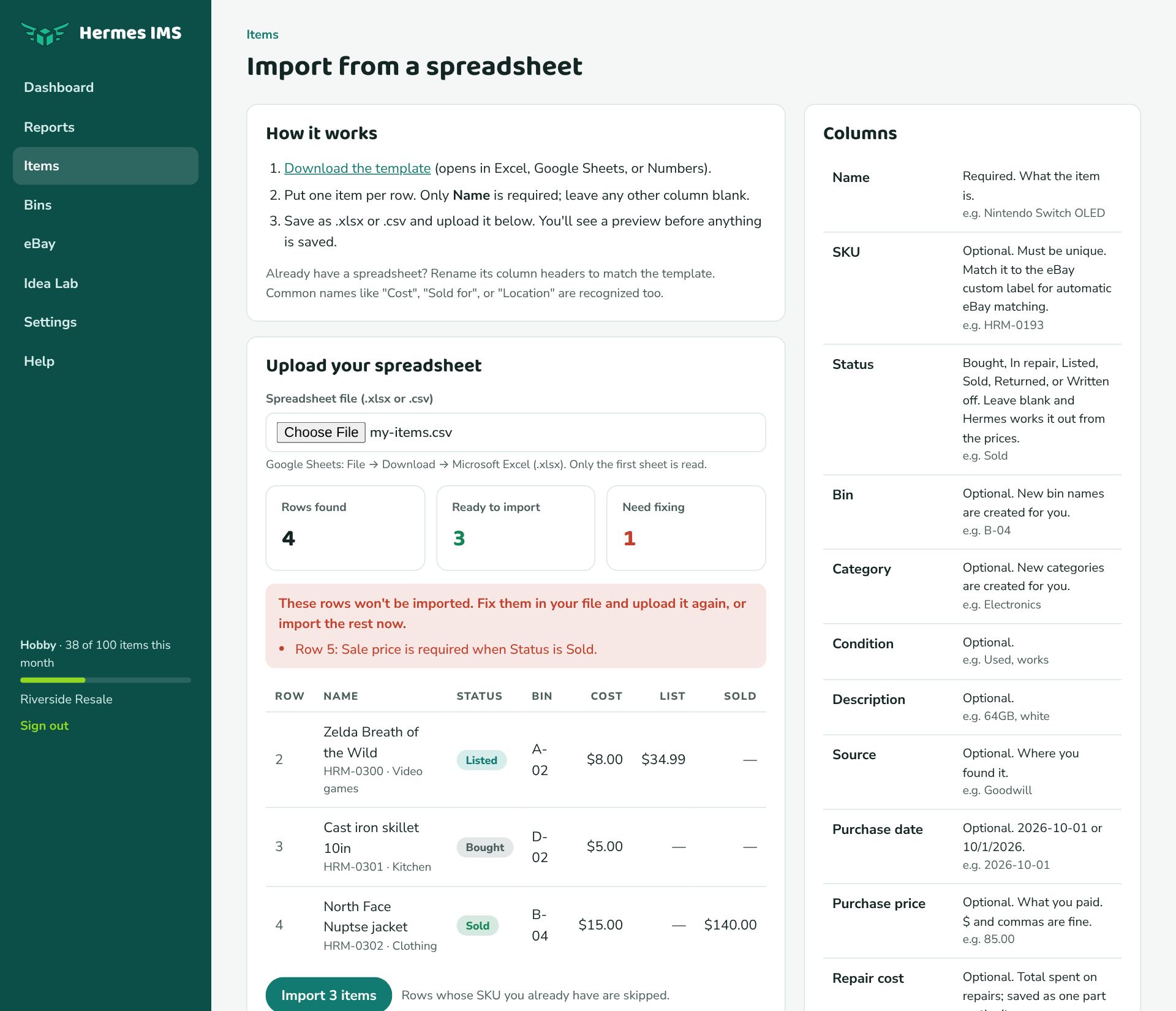
Step by step
- Go to Items → Import (or Settings → Integrations → Spreadsheets).
- Click Download the template to get a spreadsheet with the right column headers and an example row. It opens in Excel, Google Sheets, or Numbers.
- Put one item per row. Only Name is required; leave any other column blank.
- Save it as .xlsx or .csv. From Google Sheets: File → Download → Microsoft Excel (.xlsx).
- Back in Hermes, choose the file under Upload your spreadsheet.
- Check the preview: how many rows were found, how many are ready, and which need fixing (with the row number and the reason).
- Click Import N items. Rows with problems are skipped; fix them in your file and upload it again later.
Already have your own spreadsheet?
You don't have to copy everything into the template. Rename your column headers to match it, and Hermes also recognizes many common names: "Cost" or "COGS" for Purchase price, "Sold for" for Sale price, "Location" or "Shelf" for Bin, "Custom label" for SKU, and more. Columns Hermes doesn't recognize are listed and ignored.
See Spreadsheet columns for every column and the names it accepts.
What Hermes does for you
- Status left blank? Hermes works it out: a sale price means Sold, a list price means Listed, otherwise Bought.
- Bins, categories, and platforms that don't exist yet are created for you.
- Dates can be 2026-10-01 or 10/1/2026. Prices can include $ and commas.
- Rows whose SKU you already have are skipped, so importing the same file twice won't create duplicates.
- Repair cost is saved as a single part on the item.