
Help Center Items
Add a photo to an item
One photo per item: take it on your phone, pick one, or drag it in from your computer.
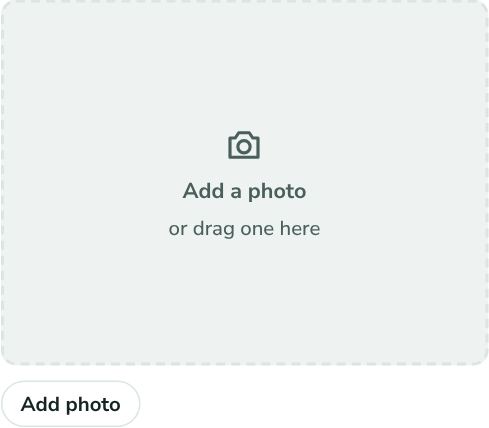
- Add it when you create the item: under Photo on the Add item form, tap Take photo (phones), click Choose photo, or drag a photo onto the box. It's saved when you save the item.
- Or add it later: open the item and click the Add a photo box, or drag a photo onto it.
- Wait a moment while it uploads. The photo appears on the item and as a thumbnail in your lists.
To replace it, click Change photo. To delete it, click Remove.
Good to know
- Each item has one photo, enough to recognize it at a glance.
- JPEG, PNG, WebP, and iPhone photos work, up to 25 MB. Hermes shrinks them on your device before uploading, so it's quick even on mobile data.
- Photos are private: only you can see them.
- If an item came from eBay and you haven't added your own photo, Hermes shows the eBay listing's main photo.