
Help Center Items
Find items, and change many at once
Search by name or SKU, filter by status or bin, and tick items to change or delete them together.
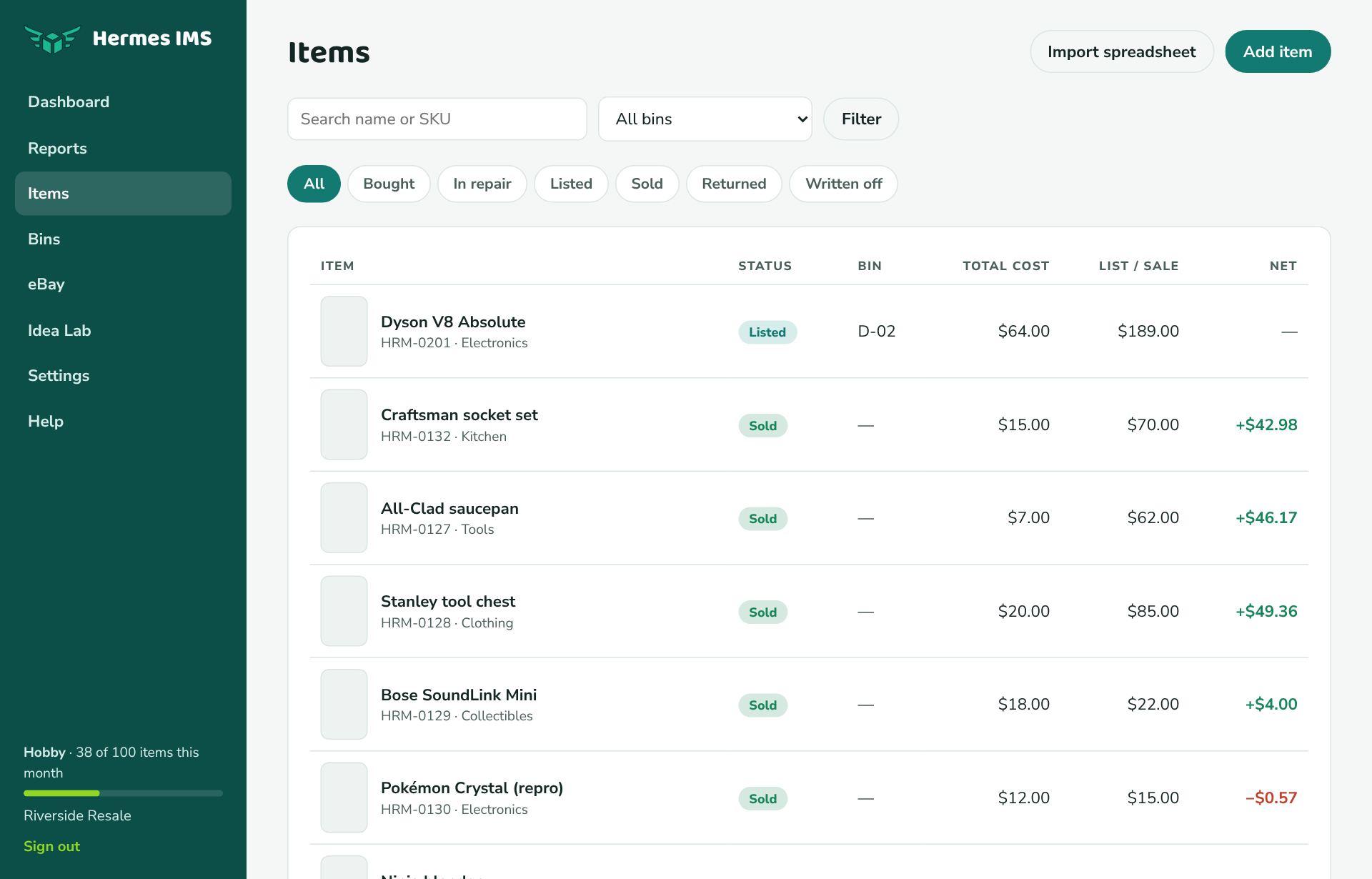
- Status tabs across the top: All, Bought, In repair, Listed, Sold, Returned, Written off.
- Search finds items by name or SKU.
- All bins narrows the list to one bin, which is handy when you're standing in front of it.
Each row shows the item (with its photo and SKU), status, bin, total cost (price paid plus parts), list or sale price, and net profit. Click an item to open it.
Change many items at once
Tick the box next to each item, or the box in the header to tick every item shown. Hold Shift and click to tick a run of items. A bar appears at the bottom of the screen with these actions:
- Change status: move them all to Bought, In repair, Listed, Returned, or Written off. Items need a list price to be Listed; any without one are skipped and listed in the message.
- Mark sold: each item sells at its list price on its own platform (or one you pick), on the date you choose, with the platform's fees worked out. Items with no price or platform are skipped. For a different price or shipping, use Record sale on the item.
- Move to bin and Set category.
- Delete: removes the items with their parts, photos, and history after you confirm. It can't be undone.
Every status change is saved in each item's history. You stay on the same tab and filters afterwards.